Vector Files for Signs: Formats, Prep and Checks
A vector file is artwork built from math instead of pixels, and it is the file a sign shop wants for your logo. It scales from a business card to a 12-foot storefront sign with no blur, and it gives a fabricator clean outlines to cut, route or print. Send an AI, EPS or clean vector PDF with the text outlined, and your order moves faster. Send a screenshot of your logo, and someone has to rebuild it first. At CrispSign, you design your sign online, and we build it to your specifications, so getting your artwork right at the start is the quickest way to a sign that looks the way you pictured it.
TL;DR
- A vector file stores shapes, lines and curves as mathematical instructions, so it enlarges without losing sharpness. A PNG or JPG is a grid of pixels and does not.
- For signs, the formats to know are AI, EPS, SVG, vector PDF and, for routing or laser cutting, DXF.
- Convert all text to outlines, keep paths clean and closed, and name your colors before you send anything.
- If you only have a JPG or PNG logo, it can be rebuilt as a vector. Do that before you order.
- Stock vectors come with license terms. Read them before a downloaded graphic goes on a storefront.
Table of Contents
- What a vector file is, in plain terms
- Which vector formats work for signs
- Why raster logos fall short on a sign
- How to get your artwork into vector form
- Prep checklist before you send a vector file
- What each type of sign asks of your file
- Using downloaded vector graphics on a sign
- Our view on vector files
- Start your sign with the right file
- FAQ
- Sources
What a vector file is, in plain terms
Adobe describes a vector file as graphics generated from mathematical descriptions of lines, curves, shapes and colors. It is a list of instructions, not a picture with a fixed number of dots. Because there is no built-in resolution, the artwork can be resized without pixelation.
A raster image (the JPG, PNG or GIF you get from a phone or a website) works the other way. Raster files are built from pixels at a fixed resolution, so enlarging them exposes the pixels and quality drops. A vector recalculates its shapes at any size.
Here is what that means for a storefront:
- Your logo on a 3-inch tabletop tent and on a 10-foot wall sign comes from the same file.
- Edges stay crisp. CorelDRAW's business guide lists store signage among vector uses and notes that smooth lines and crisp edges do not blur when scaled.
- The file stays small and editable. Colors, shapes and spacing can be changed without redrawing.
One rule of thumb from Adobe's instructional material: use vectors for clean-lined logos and type, and raster images for continuous-tone photographs. Most signs are logos, type and flat color, which is exactly vector territory.
Consistent brand visuals pay off beyond the sign itself, and these visual storytelling tips for brands show how one clean mark carries across channels.
Which vector formats work for signs
You will see five formats come up again and again. Sign Customiser's production-format guide lists AI, EPS, SVG, DXF and PDF (when the vectors are preserved) as the formats used in sign production. Adobe's own list of common vector types covers AI, EPS, PDF and SVG.
| Format | What it is | Best for signs |
|---|---|---|
| AI (Adobe Illustrator) | Native Illustrator file; keeps layers, live text, effects and color profiles | Large-format print and vinyl cutting |
| EPS (Encapsulated PostScript) | Long-established exchange format that opens in most design software | Vinyl cutting, large-format print, screen printing |
| SVG (Scalable Vector Graphics) | Web-friendly vector format | Simple graphics and web-to-print |
| Vector PDF | PDF that keeps the vector paths; may also contain rasterized elements | Proofs and print, when you know the paths are intact |
| DXF | CAD-style outline format | CNC routing and laser cutting |
The mapping to production methods in that same guide is worth remembering: AI or EPS for large-format print, EPS or AI for vinyl cutting, DXF for CNC routing and laser cutting, and EPS for screen printing.
Which one should you send?
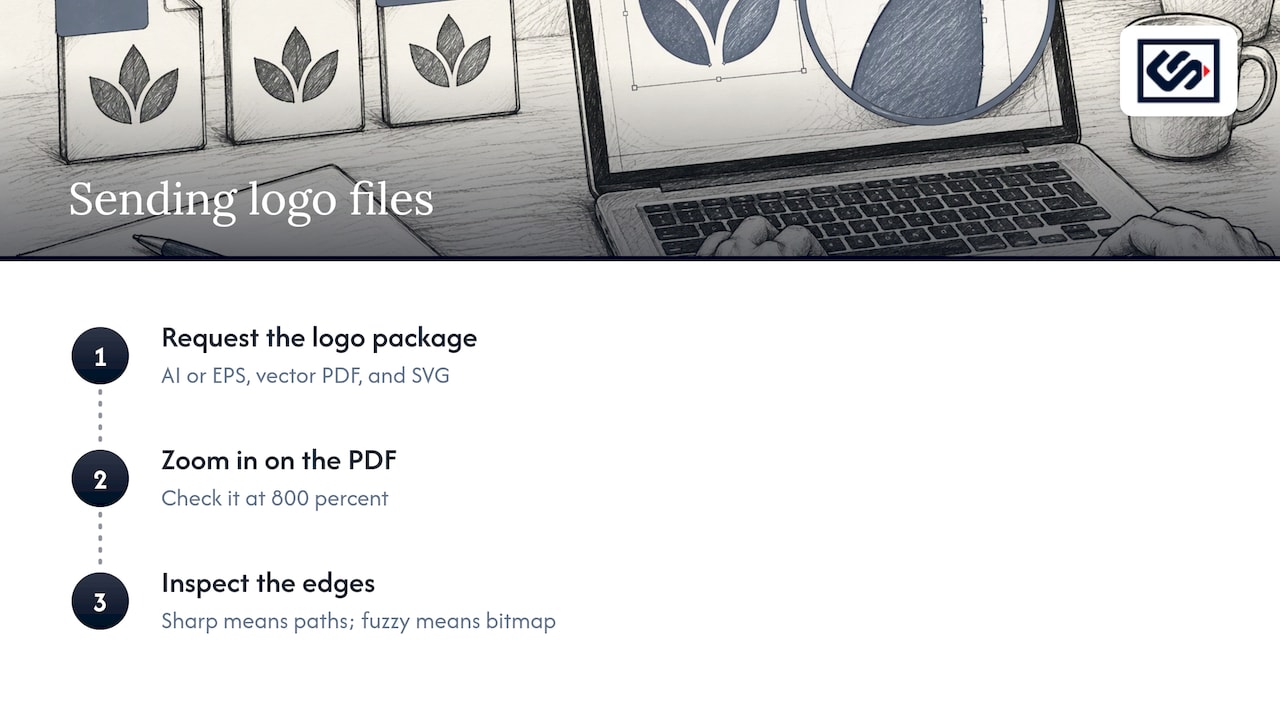
If you have a logo designer, ask for the full logo package. It should include an AI or EPS version, a vector PDF and an SVG, ideally in full color, one color, black and white. That one folder covers a window graphic, a lit cabinet sign, a vehicle decal and a lobby logo.
The PDF deserves a caution. A PDF can look like a vector and still hold a flattened bitmap inside. If you can zoom to 800 percent and the edges stay sharp, the paths are real. If they turn fuzzy, it is a picture inside a PDF wrapper.
Why raster logos fall short on a sign
The numbers explain why most business owners hit this problem. Sign Customiser reviewed 17,076 files that customers attached to design and quote requests across 83 stores between September 29, 2025 and September 28, 2026. 90% were PNG or JPG images rather than vector files. Most business owners have a logo that came off a website, a business card template or a social media profile, which means a raster.
That does not make the logo unusable. It means it needs a quick conversion step first.
How resolution depends on viewing distance
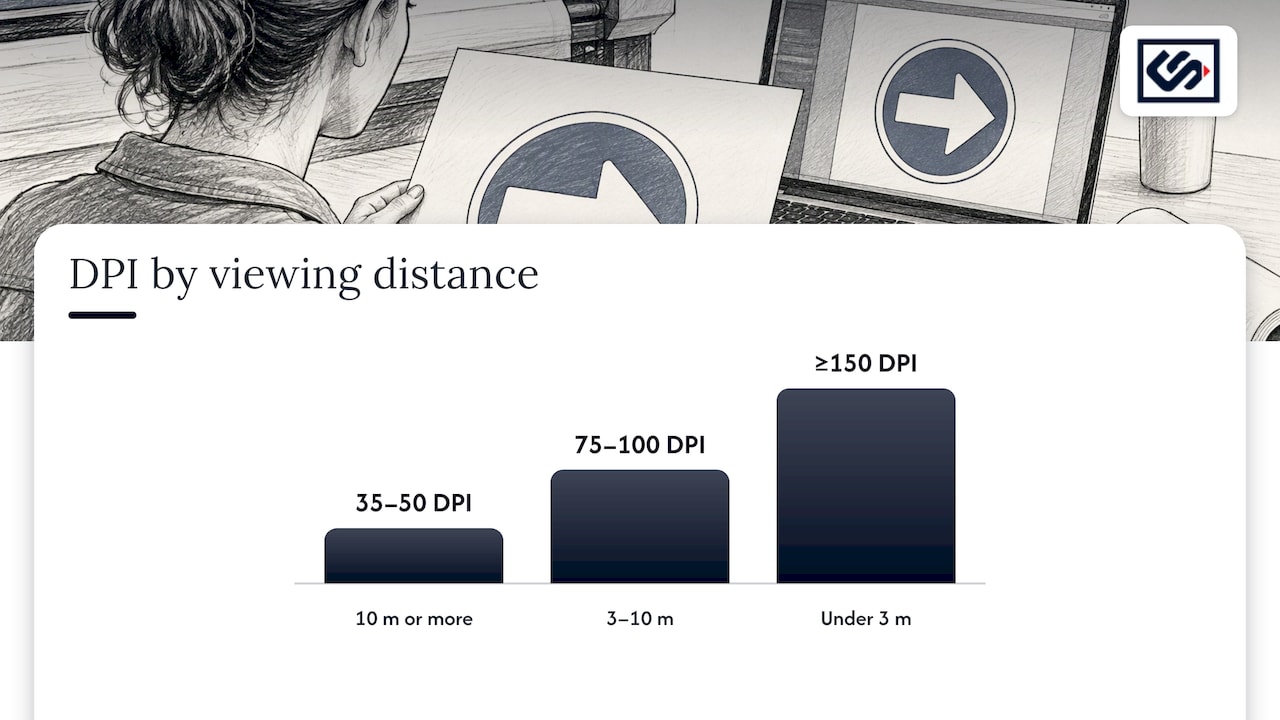
Raster images are measured in DPI (dots per inch), and the needed DPI drops as the viewer gets farther away. According to Sign Customiser's FAQ:
- Outdoor signs viewed from 10 meters (about 33 feet) or more need 35 to 50 DPI at final size.
- Signs viewed from 3 to 10 meters (roughly 10 to 33 feet) need 75 to 100 DPI.
- Close-up viewing under 3 meters (about 10 feet) needs at least 150 DPI.
- JPEGs can work for large-format print at 75 to 150 DPI, but TIFF or vector is preferred.
The key phrase is at final size. A logo that is 600 pixels wide and looks fine on your website is about 2 inches wide at 300 DPI. Stretch it to 8 feet and it is under 10 DPI. This is the usual reason a proof looks soft. For a look at how viewing distance shapes print jobs on boards and posters, see this overview of large format printing.
A photo on a window graphic or a vehicle wrap can be a high-resolution raster. Your logo, lettering and any line art should be vector.
How to get your artwork into vector form
There are three practical routes, depending on what you have.
1. You already have a vector
Search your computer, email and old design folders for files ending in .ai, .eps, .svg or .pdf. Check the original designer's delivery email too. Logos are often handed over once and forgotten.
2. You have only a JPG or PNG
The artwork has to be redrawn or traced as vector paths. Adobe's Live Trace guide describes converting bitmap images into scalable, editable vector paths, and Illustrator's current Image Trace does the same job. Auto-tracing works best on simple, high-contrast logos. It can leave bumpy edges and extra points on anything with gradients, thin strokes or small type, so zoom in and clean it up, or have it redrawn by hand.
Tracing fixes the shape. It does not fix the font. If your logo uses a typeface, the clean result is to match or redraw the lettering.
3. You have no artwork at all
Start from a new design. On our builder, the Designer is a $25 one-off and artwork setup is a $99 one-off, both listed on our LobbyLogo and artwork hub. A new startup with a name and nothing else can begin there instead of hiring a separate designer first.
Prep checklist before you send a vector file
A vector file can still cause trouble. Run through these checks before you upload.
- Convert text to outlines. Fonts cause many production problems, and converting text to outlines removes the font dependency. Public agencies ask for the same thing: Multnomah County's 2026 sign standards require production-ready vector artwork in EPS or Illustrator format with all fonts converted to curves or outlines. In Illustrator, select the text and choose Type, then Create Outlines. Save a separate editable copy first.
- Keep paths clean and closed. This matters most for DXF cutting files. Open endpoints, overlapping lines and tiny gaps cause cutting errors. Channel letters and carved signs depend on closed shapes.
- Remove clutter. Delete hidden layers, stray points, leftover guides, and any old versions of the logo parked off the artboard.
- Build at full size or proportional scale. Vectors scale, but strokes and effects sometimes do not. Check any drop shadows, glows or textures, which are often raster effects hiding in a vector file.
- Allow for bleed and safe margins when the sign prints. The same guide gives a standard bleed of 3 mm for small formats and 10 mm for large formats, with critical elements at least 5 mm inside the trim line. In US terms, that is roughly an eighth of an inch and about three-eighths of an inch, with text kept about a fifth of an inch from the edge.
- Define your colors. Note the exact brand colors (Pantone or hex values) so a red on screen is the red on the sign.
- Simplify for the material. A fine tagline that looks great on a business card may disappear on a 15-foot sign read from the street. Thin lines and tiny gaps also do not carve or cut well.
- Save and name clearly. Use something like yourbrand-logo-outlined.ai and keep the editable original alongside.
What each type of sign asks of your file
The same logo gets fabricated in very different ways, so the file requirements shift with the product.
- Channel letters and illuminated signs. Letter shapes become cut or formed pieces. Clean outlines and simple, bold shapes matter. Our Beacon sign lines cover exterior letters, carved cedar, illuminated cabinets and monument signs.
- Interior lobby logos, acrylic panels and wall vinyl. Lobby signs reward crisp, high-contrast artwork, and doctors' offices and restaurants often want the logo sharp at reading distance. Browse the Lobby range for logos, panels, vinyl graphics and tabletop tents.
- Vehicle graphics. Decals and magnets are cut or printed from vector shapes, and the same file works for a van door and a pickup tailgate. See Vehicle Decals and Vehicle Magnets.
- Wayfinding. Directional signs for service providers use arrows, icons and short text. Vector icons stay readable at any size, so keep a single approved set.
Using downloaded vector graphics on a sign
Stock vector sites are full of arrows, icons, coffee cups and borders, and the top search results for this topic are mostly those libraries. Downloading a free file does not automatically give you the right to put it on a storefront. Each library sets its own license terms, and many separate personal use from commercial use, or restrict use inside a logo or trademark.
Before a downloaded graphic goes on a sign:
- Read the license on the download page and confirm commercial use is allowed.
- Check whether the license restricts use in logos or trademarks, since a sign is often your brand mark.
- Keep a record of where you got the file and the license terms.
- Remember that a graphic anyone can download is one a competitor down the street can also use. Your own logo is the safer foundation.
If the terms are unclear and the sign is a major investment, ask a lawyer to review the license.
Our view on vector files
We built CrispSign on a simple idea: ordering a sign should feel as easy as ordering anything else online. Artwork is where that can go wrong, because nobody warns you about file types until a proof comes back fuzzy.
That is why we put the design step first. You design online, you see an instant estimate, and your design assets are saved so the next sign, the next location or the next vehicle starts from the same approved artwork. For a business with several locations, that consistency is the point: the logo on the first storefront should match the fifth.
Our advice to every new owner is to treat the vector logo as a business asset, like a lease or a license. Get it once, outline the text, store it in two places, and every sign you order from then on goes faster. If you do not have one, our artwork setup and Designer options on the builder exist so you do not stall at the first step.
Nick
Start your sign with the right file
If your logo is ready as a vector, you can go straight to the builder and get an instant estimate. If it is a screenshot or a JPG, artwork setup at $99 one-off and the Designer at $25 one-off are listed on our artwork hub, so you can sort the file out in the same place you order the sign.
We build exterior letters, carved cedar, illuminated cabinets, monument signs, lobby logos, window and wall vinyl, and vehicle graphics to your specifications, and ship nationwide with DIY or coordinated professional installation. Our CrispVIP membership is a $299 one-off.
FAQ
Can I send a PNG or JPG for a sign?
For a logo, a vector is the right file. A PNG or JPG has a fixed pixel count and gets soft when enlarged. Photos for window graphics or vehicle wraps can be raster if the resolution is high enough at final size, but your logo and lettering should be vector.
Is a PDF a vector file?
It can be. A PDF can hold true vector paths or a flattened picture, and it may contain rasterized elements. Zoom in a long way: sharp edges mean vector paths, pixels mean a raster inside a PDF.
What is the difference between AI, EPS and SVG?
AI is Illustrator's native file and keeps layers, live text and effects. EPS is an older exchange format that opens in many programs, which makes it a dependable choice for vinyl cutting and print. SVG suits web graphics and simple artwork. For routing or laser cutting, a DXF with clean, closed paths is the standard.
Why do I need to outline my fonts?
If the shop does not have your font, the software swaps in another one and your lettering changes. Converting text to outlines turns each letter into a shape, so the file looks the same on every computer. Keep an editable copy for future changes.
Can I use free stock vectors on a business sign?
Only if the license allows commercial use, and check any limits on logos or trademarks. Save the license terms with the file. Your own logo is the more distinctive and safer choice for a storefront.
Sources
- Vector files: How to create, edit and open them | Adobe
- Raster vs. vector: What are the differences? | Adobe
- Comparing vector and bitmap graphics | Peachpit
- Vector Art in Business | CorelDRAW
- Creating Vector Content Using Live Trace | Adobe Illustrator
- Vector File Formats for Signs: DXF, AI, EPS & Raster Guide
- Sign Quality Control Checklist
- Wayfinding and Sign Standards 2026 | Multnomah County
- Visual storytelling tips: boost your brand's impact
- Custom large format printing